When my son had saved up enough money and firmly decided to buy himself a Yandex Station with Alice, I knew right away: this time I would definitely try to program something with it.
First, in commercial development I had barely touched voice interfaces (VUI — Voice User Interface). And here was a chance to be an application developer for something beyond monitors and browsers.
Second, voice assistants are often associated with the "smart home": they orchestrate everything you can connect to them. So this also meant the Internet of Things (IoT): the chain of sensor → server → smart speaker — plus an excuse to try browser APIs for hardware like Web Serial, WebUSB and Web Bluetooth, which I had never needed in everyday work.
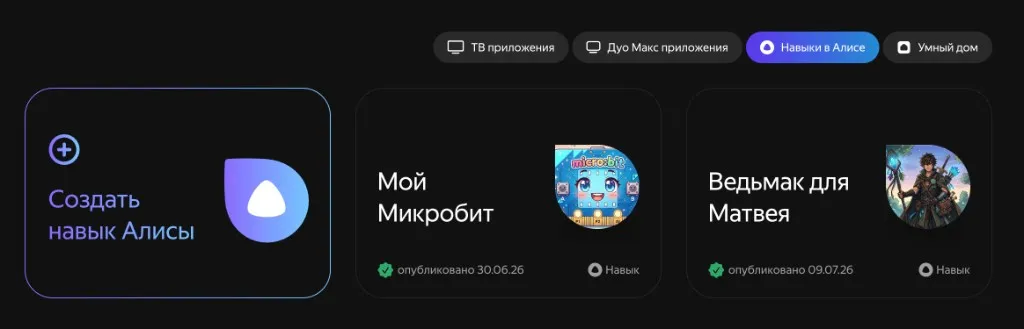
Yandex Dialogs — the Alice skills store
The Yandex Station has something like an app store — Yandex Dialogs. There you can publish Alice skills publicly (available to everyone) or privately: the skill lives only on your own speaker under your own account.
Alice has a protocol for talking to a backend. A voice utterance is turned into JSON and sent to the server endpoint you specify. The server replies using the same protocol — text, TTS, buttons, an "end session" flag — and the speaker turns the response into speech.
In plain terms, it's the chain speaker → internet → server.
In the developer console you create a skill, point it at an HTTPS endpoint — and the speaker starts sending requests there.
First attempt — a voice game about the Witcher
At some point my son got bored at his grandmother's place, and I decided: time to build the first game app.
The concept is simple and leans on Sapkowski's "The Witcher". You launch the skill, pick a witcher school, and drop into a game loop: Alice throws a new monster at you, and you decide how to defeat it — with the silver sword or with verbena potion.
Nothing complicated. Together with an AI agent we quickly figured out Alice's protocol, collected monster data, wrote the logic on an endpoint of this very site, and deployed it. Then we fed the URL to the skill and published it.
The Dialogs console has a test chat: voice communication is replaced by text — handy for debugging. I copied that approach and built a page right here on my site, where the skill can be exercised online without a speaker.
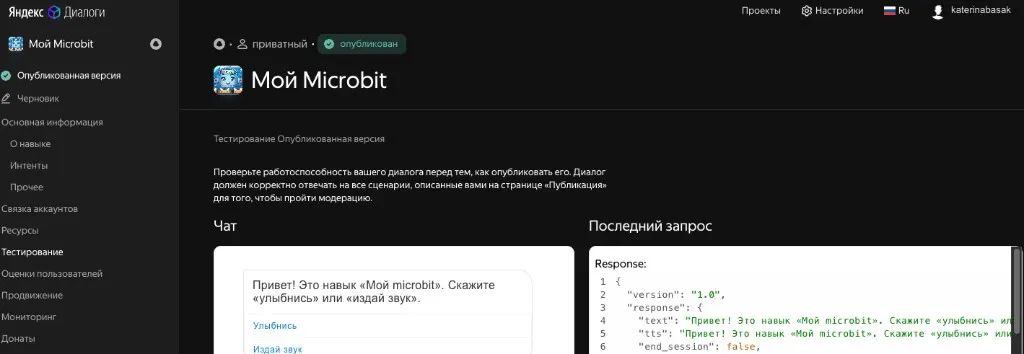
After publishing, the game can be launched by voice. Delight! A voice game, and it works.
But I wanted to go further: to add a sensor to the chain speaker → internet → server — just like in a real smart home.
The next step — a skill for the micro:bit
I had programmed with the kids on the micro:bit before. They know this "toy" well and can flash it with visual blocks via MakeCode. Mentally replace the microcontroller with a robot vacuum, a fridge or a washing machine — and there's your smart home.
We made the "My Microbit" skill: Alice can say "smile", "make a sound", show sadness or scroll text — and the server turns that into a short text command. Essentially a second protocol on top of the first: speaker → server → microcontroller.
The skill was built the same way as the Witcher one. One gap remained: how to actually reach the board from the server.
The cable: UART over USB
The micro:bit has no Wi‑Fi and cannot reach the internet on its own. But it does have USB — and over the cable it speaks UART (Universal Asynchronous Receiver/Transmitter): a simple serial channel, byte by byte, with no complex addressing. For us it's a virtual COM port (we pretend it's an old, thick translator cable) at 115 thousand baud (bits per second).
The board's documentation lists the USB Vendor ID / Product ID — the filters the browser uses to recognize the micro:bit among the pile of USB devices (0x0D28 / 0x0204). An AI agent found them quickly, so I barely had to dig through the docs by hand.
Via Web Serial (or WebUSB when Serial is unavailable) the browser can open the port and write our commands to it:
const port = await navigator.serial.requestPort({
  filters: [{ usbVendorId: 0x0d28, usbProductId: 0x0204 }],
});
await port.open({ baudRate: 115200 });
const writer = port.writable.getWriter();
await writer.write(new TextEncoder().encode('SMILE\n'));
One line — one command. SMILE, SAD, HEART, BEEP, CLEAR, TEXT:hello — everything ends with \n.
I built a connector page: from the browser we connect to the board and send our own text protocol, much like MakeCode, only with our own verbs.
The server → page bridge: WebSockets
One question remains: how does the server, having received a command from Alice, deliver it to the page that talks to the board over USB or Bluetooth? The server cannot connect to the micro:bit by itself — it needs some way to reach the connector page.
For that we use WebSockets: a persistent two-way channel between the server and an open tab. Specifically, Pusher Channels: Alice's endpoint receives the voice, understands the command (smile → SMILE) and publishes an event to a channel. The connector tab is already subscribed to that channel over a WebSocket, catches the message, and writes the bytes to UART — over USB or BLE.
On the page itself you can see it with your own eyes: next to the board status there's an "Alice Bridge" block. When everything is fine, it doesn't just say "micro:bit connected" but also shows a status like "Listening" — meaning the tab is in touch with the cloud over WS via Pusher and is ready to accept commands from the Station. Without an open connector, Alice's voice will reach the server — but not the LEDs.
The full chain: Station → internet → skill server → WebSocket (Pusher) → connector tab → UART/BLE → micro:bit.
Okay, but a board tethered to a laptop by a cable is still inflexible. You want to show the kids the wireless path to the actual hardware: the way a vacuum cleaner is launched from a phone or from the Station.
Without a wire: Bluetooth, GATT, RX/TX
The micro:bit has no Wi‑Fi, but it does have Bluetooth Low Energy. Over BLE the device exposes GATT services (Generic Attribute Profile) — essentially a catalog of "what this gadget can do". Inside a service there are characteristics: fields you can write bytes to or read bytes from.
For UART over Bluetooth the micro:bit uses the Nordic UART Service (NUS). It's important not to mix up the directions:
- RX (Receive from the board's point of view) — the characteristic the browser writes commands to (
…003) - TX (Transmit from the board's point of view) — the characteristic the browser reads replies from (
…002)
So "RX for the board" = "writing from Chrome". A familiar mix-up; that's just how Nordic's datasheet defines it.
Via Web Bluetooth we send the same UART strings, only over the air:
const device = await navigator.bluetooth.requestDevice({
  filters: [{ namePrefix: 'BBC micro:bit' }],
  optionalServices: ['6e400001-b5a3-f393-e0a9-e50e24dcca9e'],
});
const server = await device.gatt.connect();
const service = await server.getPrimaryService('6e400001-b5a3-f393-e0a9-e50e24dcca9e');
const rx = await service.getCharacteristic('6e400003-b5a3-f393-e0a9-e50e24dcca9e');
await rx.writeValue(new TextEncoder().encode('SMILE\n'));
The transport is ready. But there's a gap: the firmware doesn't understand USB or BLE commands yet.
My son writes the firmware in MakeCode
And this is where my son steps in. In MakeCode he assembles the handleCommand function: a SMILE string arrives — we draw a smiley; BEEP — a short sound; TEXT:… — a scrolling line. Two handlers — one for the serial port and one for the Bluetooth UART — call the same logic. All with blocks, in a visual language.
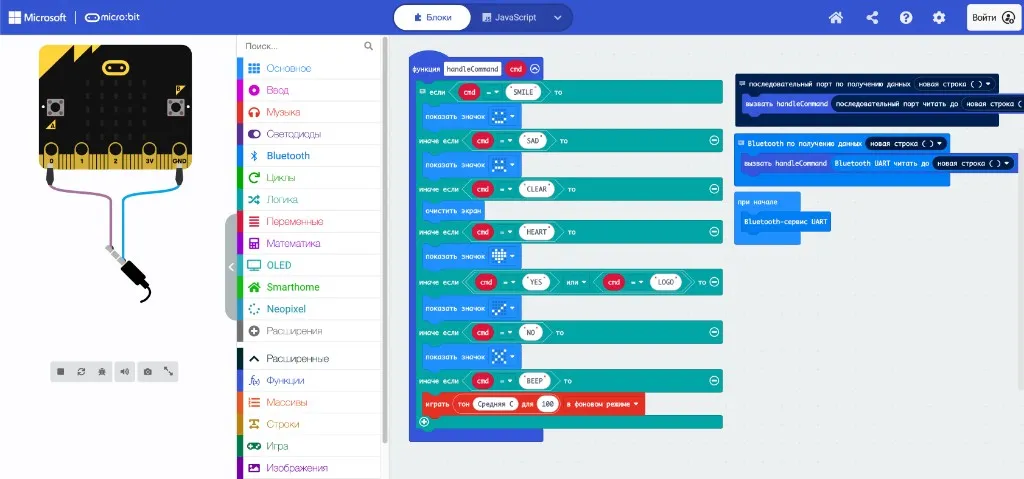
The TypeScript version of the same logic looks like this (concise, as in the docs):
bluetooth.startUartService();

function handleCommand(cmd: string) {
  if (cmd == 'SMILE') {
    basic.showIcon(IconNames.Happy);
  } else if (cmd == 'SAD') {
    basic.showIcon(IconNames.Sad);
  } else if (cmd == 'BEEP') {
    music.play(music.tonePlayable(Note.C, 100), music.PlaybackMode.InBackground);
  } else if (cmd.substr(0, 5) == 'TEXT:') {
    basic.showString(cmd.substr(5));
  }
}

serial.onDataReceived(serial.delimiters(Delimiters.NewLine), function () {
  handleCommand(serial.readUntil(serial.delimiters(Delimiters.NewLine)));
});

bluetooth.onUartDataReceived(serial.delimiters(Delimiters.NewLine), function () {
  handleCommand(bluetooth.uartReadUntil(serial.delimiters(Delimiters.NewLine)));
});
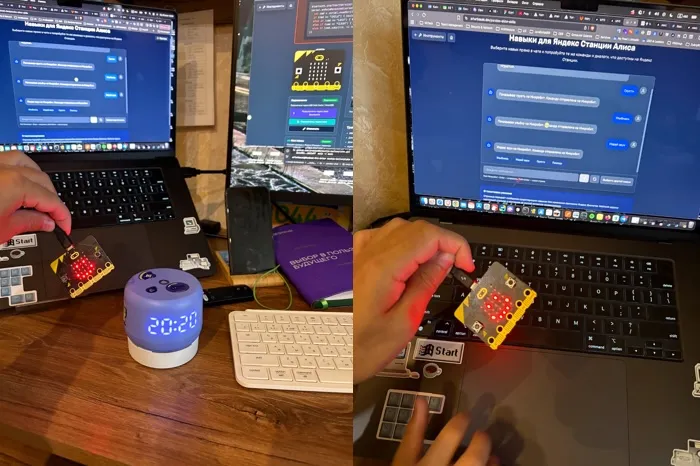
We flash the micro:bit, open the connector, connect over USB or Bluetooth, launch the skill on the Station — and the board dutifully draws smileys and beeps on voice command.
In my view, it turned into a solid lab exercise: VUI, Alice's JSON protocol, a WebSockets bridge via Pusher, a custom command protocol, Web Serial / Web Bluetooth, GATT, and a kid's MakeCode — all in one loop.
What came out of it, on video
Related notes
- A small but complete PWA from 0 to 1, as an example for kids within the "do your :bit" challenge
- An accelerometer as an alternative game control in a shooter
- How my son and I built a watering sensor for a cactus, or why the micro:bit is the best first computer
- A smart Christmas tree ornament on the micro:bit